pyvista.Camera.tight#
- Camera.tight(padding=0.0, adjust_render_window=True, view='xy', negative=False)[source]#
Adjust the camera position so that the actors fill the entire renderer.
The camera view direction is reoriented to be normal to the
viewplane. Whennegative=False, The first letter ofviewrefers to the axis that points to the right. The second letter ofviewrefers to axis that points up. Whennegative=True, the first letter refers to the axis that points left. The up direction is unchanged.Parallel projection is enabled when using this function.
- Parameters:
- padding
float, default: 0.0 Additional padding around the actor(s). This is effectively a zoom, where a value of 0.01 results in a zoom out of 1%.
- adjust_render_windowbool, default:
True Adjust the size of the render window as to match the dimensions of the visible actors.
- view{‘xy’, ‘yx’, ‘xz’, ‘zx’, ‘yz’, ‘zy’}, default: ‘xy’
Plane to which the view is oriented.
- negativebool, default:
False Whether to view in opposite direction.
- padding
Notes
This resets the view direction to look at a plane with parallel projection.
Examples
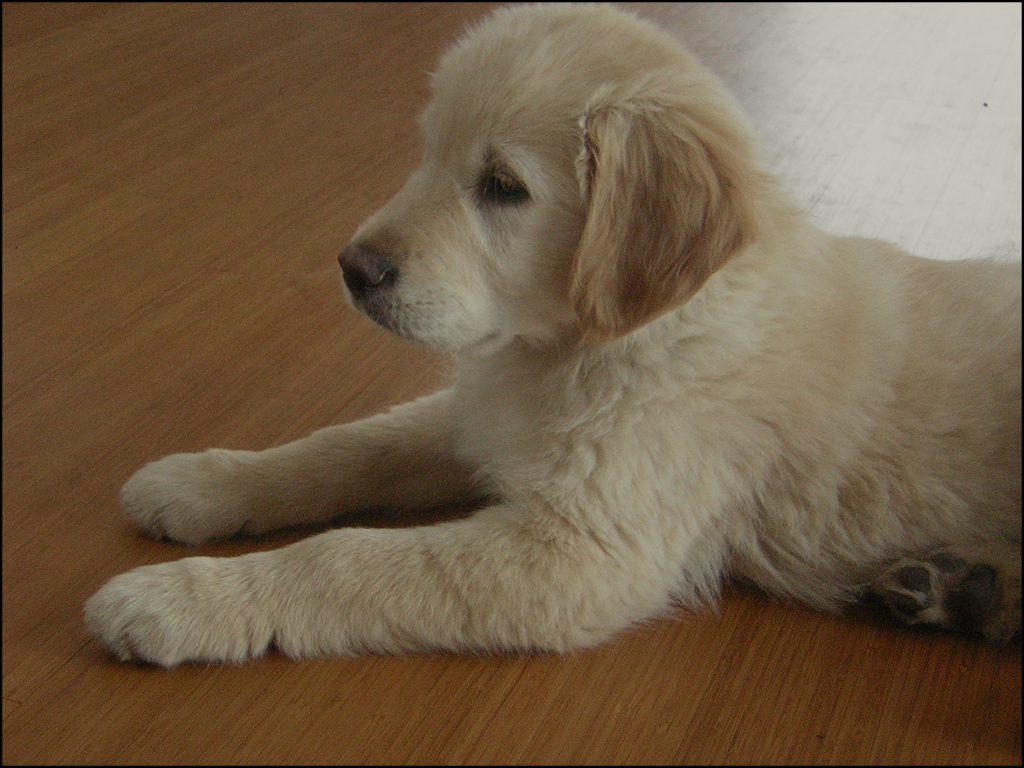
Display the puppy image with a tight view.
>>> import pyvista as pv
>>> from pyvista import examples
>>> puppy = examples.download_puppy()
>>> pl = pv.Plotter(border=True, border_width=5)
>>> _ = pl.add_mesh(puppy, rgb=True)
>>> pl.camera.tight()
>>> pl.show()
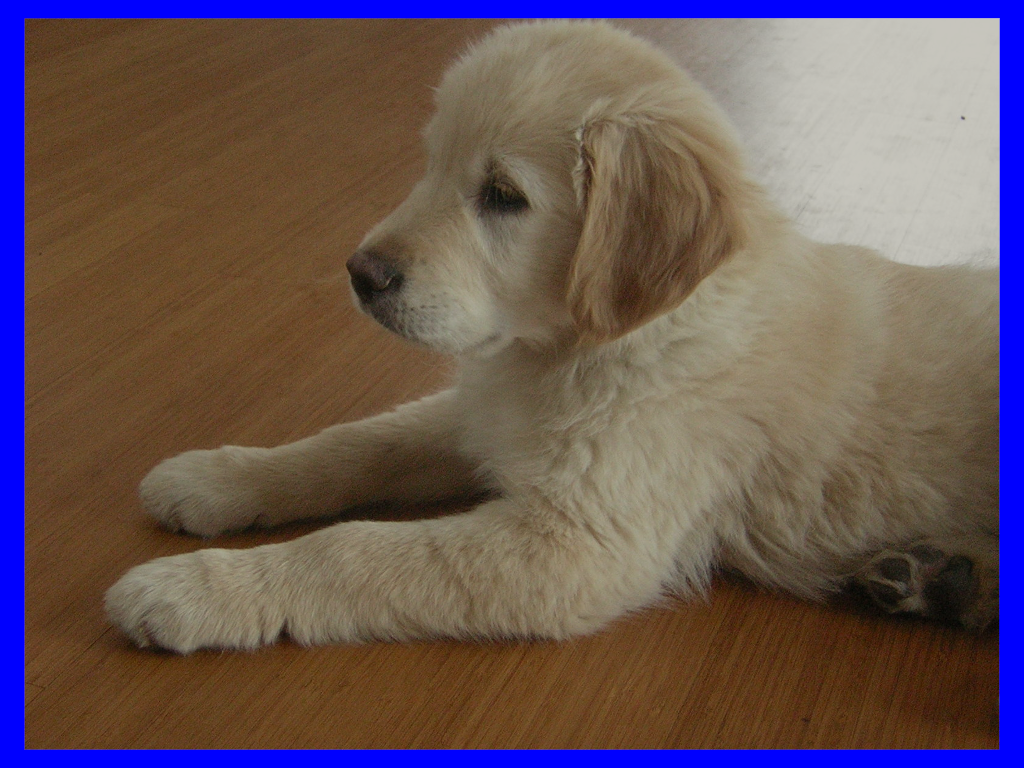
Set the background to blue use a 5% padding around the image.
>>> pl = pv.Plotter()
>>> _ = pl.add_mesh(puppy, rgb=True)
>>> pl.background_color = 'b'
>>> pl.camera.tight(padding=0.05)
>>> pl.show()